
To connect a Yeastar Cloud PBX connection, you will first need to create a new Voice Service. Once a new SIP Trunk service has been created, click on the Connections tab and go to the SIP End Point section to setup a username and password. Ensure that Enable SIP Account and Trust CLI is activated and save the updates.
Now you will need to login to your Yeastar cloud management console to set this up. Follow the below steps:
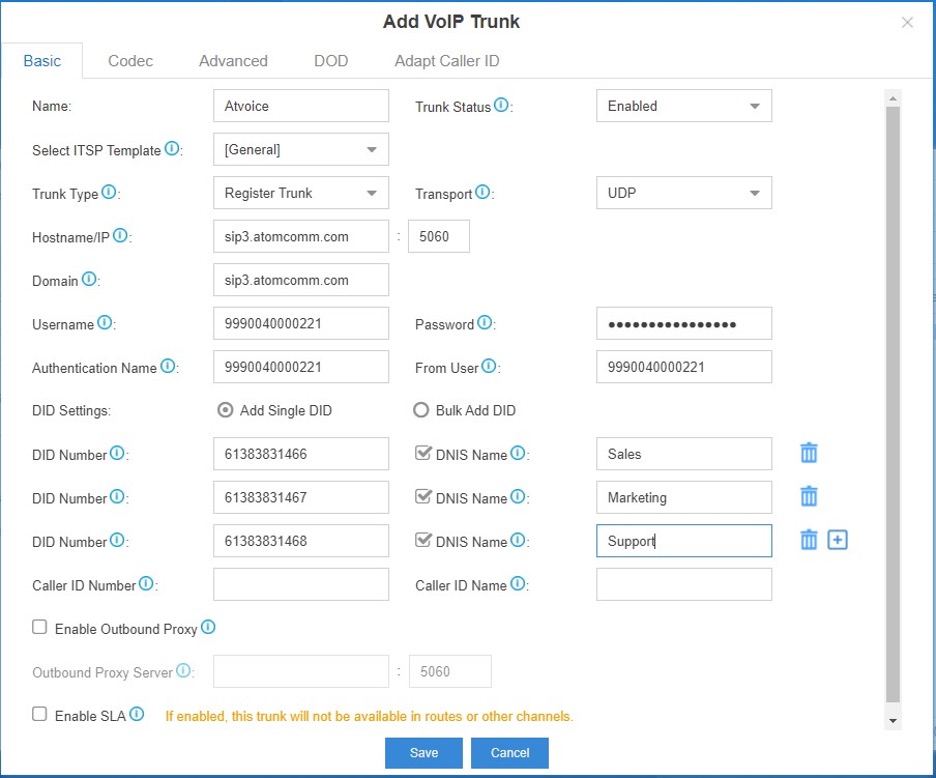
1. Create a VoIP Register Trunk - General
- Go to Settings > PBX > Trunks and click on Add
- In the Name field, enter the name of the trunk. This can be "Atomic"
- In the Select Country dropdown list, select General
- In the Trunk Type dropdown list, select Register Trunk
- Enter your Atomic registration details in the below fields:
Hostname/IP: sip3.atomcomm.comDomain: sip3.atomcomm.comUsername: Your SIP End Point UsernamePassword: Your SIP End Point PasswordAuthenticate: Your SIP End Point UsernameFrom User: Your SIP End Point Username
If you have DID's associated to the your Atomic Service, you can follow the instructions below before saving your setup. If not, just go ahead and save the trunk.
Once your trunk has been created, you can check the status on PBX Monitor as well as on the Atomic portal under Accounts > Connections > SIP End Point. If everything has been entered correctly, you should see the label as Connected.
2. Adding DID's
Once a trunk has been created, you can then add DID's that is associated to your trunk. To do this, you will need to Edit the trunk you have previously created in the earlier step.
Under DID Number field, enter the DID number and select DNIS Name and give the number a friendly name. Continue to add more DID numbers by clicking on the "+".
3. Making Outbound Calls
The default Outbound Route (with dial pattern X.) allows you to pass all calls dialed by a user as is to the Atomic platform.
Dial Format. Example:-
Calling Number - 0488888888
If Dial Format is set as Domestic, dial 0488888888;
If Dial Format is set as E.164, dial 61488888888- Go to Settings > PBX > Call Control > Outbound Routes
- Click Add to add a new Outbound Route
- Under Member Trunks, you will see 2 boxes - Available and Selected. In the Available box, double click on the trunk that's created in the earlier step and you will see it automatically move to the Selected box.
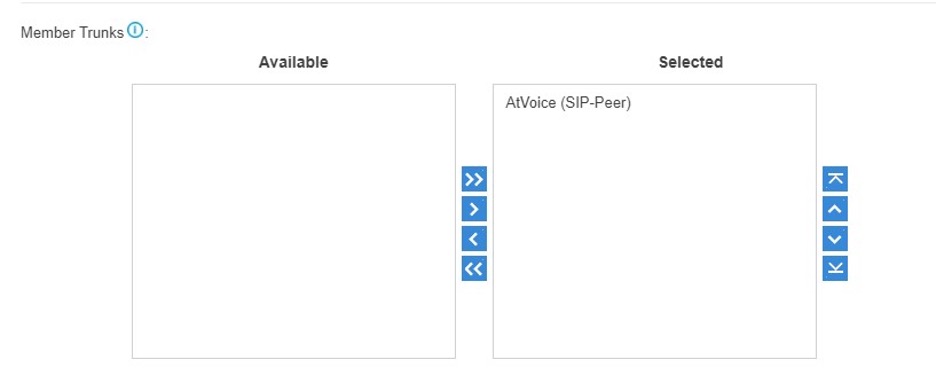 Member Trunks section with AtVoice (SIP-Peer) trunk moved to the Selected box
 - Under Member Extensions, you will see all the available extensions in the Available box. Double clicking on an extension will move them to the Selected box. Only extensions in the Selected box can make outbound calls using this trunk.
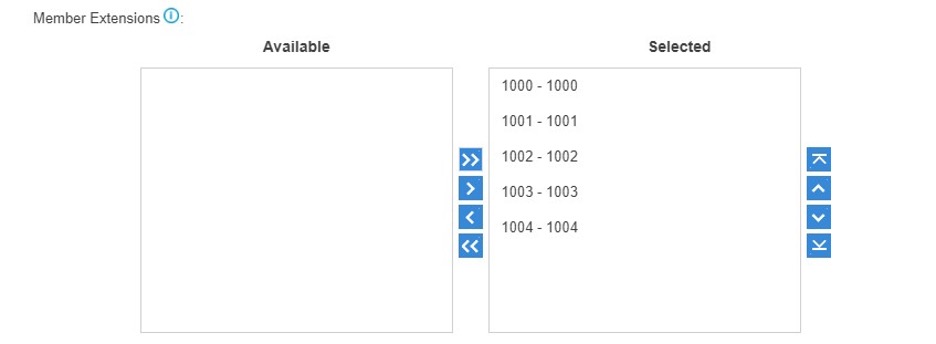 Member Extensions panel with extensions 1000–1004 moved to the Selected box for trunk outbound acce…
 - Click Save and Apply to save your setup.
Extensions that are on the Selected box can now start making outbound calls.
4. Setting CallerID for Outbound Calls
In this section, you will be able to configure an extensions CallerID. This is the CLI that will appear on the receivers handset.
- Go to Settings > PBX > Trunks > DOD
- Click Add
- In the DOD Number field, enter the desired CLI number
- In the DOD Name, you can give it a descriptive name or enter the same number
- In the Available box, double click the desired extension that you want to have the CLI. This will move the extension from the Available box to the Selected box automatically.
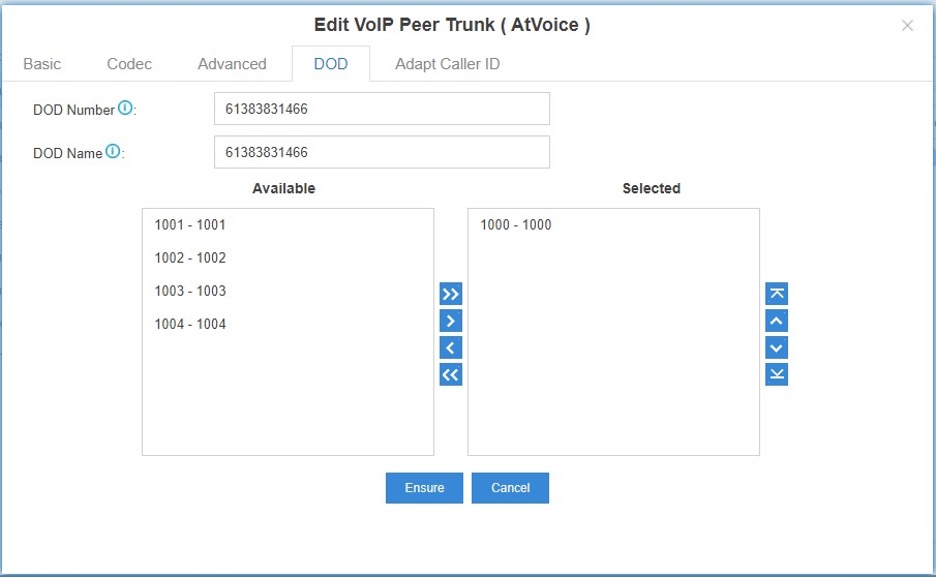 Yeastar Edit VoIP Peer Trunk DOD tab showing extension 1000 moved to the Selected box
All extensions in the Selected box will now carry the CLI that is
5. Receiving Incoming Calls
Incoming calls for DID numbers that you port or order from the Atomic platform can be directed to an extension, ring group, queue or a digital receptionist (IVR) on your Yeastar Cloud PBX. For this to happen, you will need to setup an inbound route on your PBX.
For this example, we are saying that DID for 61260000001, you want it to ring your Sales Team. Here is how you configure this:
- Go to Settings > PBX > Call Control > Inbound Routes
- Click Add to add an inbound route
- In the Name field, we will enter Sales
- In the DID Pattern field, we will enter the DID number
- Under Member Trunks, double click on the trunk you created earlier (Atomic) in the Available box. The trunk will automatically move from the Available box to the Selected box.
- In the Destination field, select the destination for the inbound call. In this case, it would be to an Extension and the extension number is 1000.
E.164, you will enter the number exactly as 61260000001. If you have the Number Format for the DID setup as Domestic, you will enter the number exactly as 0260000001.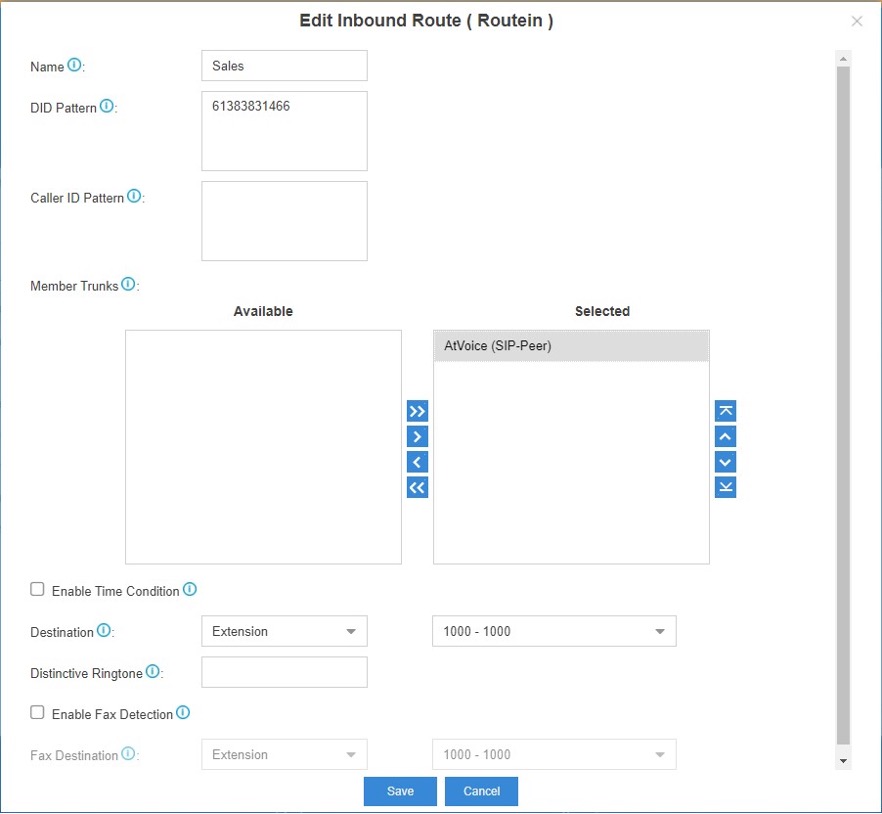
Click on Save and your incoming route has been configured.