
This guide is to show you how you can use a cloud automation tool to divert SMS received on your Virtual Mobile Numbers to your email. This guide will show how you can use Microsoft Flow to automate the process for you.
You will need to have an account with Microsoft Flow. You can login to Microsoft Flow over at https://flow.microsoft.com
- Click on My Flows. On the top menu bar select New Flow > Automated cloud flow
- Under Flow Name, give it a descriptive name like "Receive SMS from @voice" and leave everything blank and click on Skip
- Type in "Request" in the search field and select Request
 Microsoft Flow connector search results with the "Request" connector highlighted in red
 - Under the Triggers, select When an HTTP request is received. A URL will automatically be created once you complete the flow.
- Click on Next Step and type in Mail and select Send an email notification
- In the To field, enter the email address that you want to send the notification to
- When you click in the Subject field a pop-up will appear. Select Expression and paste this syntaxand click on OK.plain text
triggerBody().from - You can add "New SMS From -" at the front of the Subject field as belowThis will mean the the Subject of the email will appear as "New SMS From - {Sender Number}".
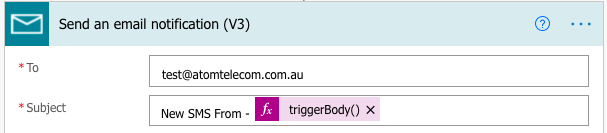 Microsoft Flow "Send an email notification" step with Subject set to "New SMS From - triggerBody()"
 - In the Body, you can pre-type as per below:
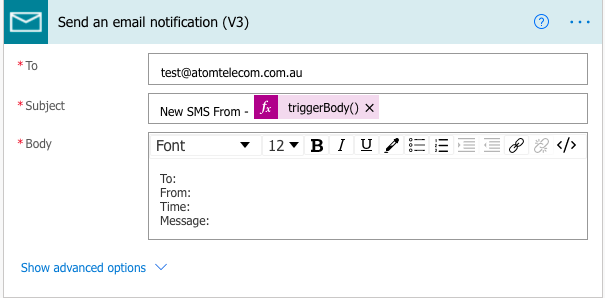 "Send an email notification (V3)" step in Microsoft Flow with Body pre-filled with To, From, Time,…
 - Next, click next to the "To:", and from the pop-up, click on Expression and paste this syntaxand click on OK.plain text
triggerBody().to - Click next to the "From:", and from the pop-up, click on Expression and paste this syntaxand click on OK.plain text
triggerBody().from - Click next to the "Time:", and from the pop-up, click on Expression and paste this syntaxand click on OK. Please be mindful that the timestamp will show as a GMT 0 timezone.triggerBody().timestamp
- Click next to the "Message:", and from the pop-up, click on Expression and paste this syntaxand click on OK.plain text
triggerBody().message - The final result should look something like this
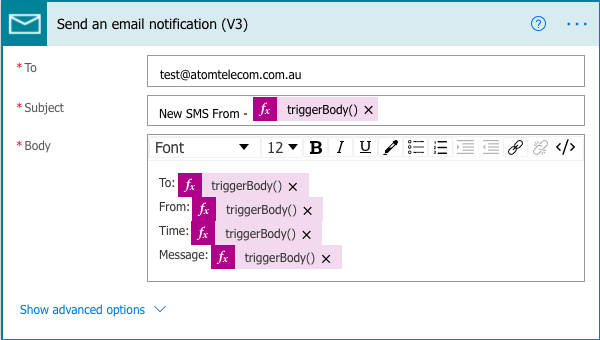 Completed "Send an email notification (V3)" step in Microsoft Flow with dynamic SMS fields mapped t…
 - You can now click on Save
- Go back to the first trigger and click on When a HTTP request is received and copy the URL provided
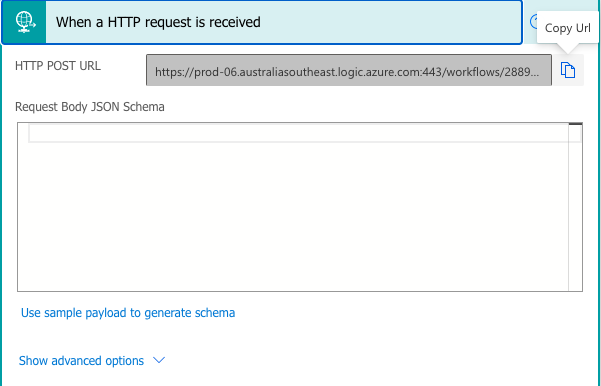 Microsoft Flow "When a HTTP request is received" trigger showing the HTTP POST URL with Copy Url bu…
 - Log in to your @voice portal and head over to Accounts > List All
- Select Connections and select the Callback URL tab
- Paste the URL you copied from Microsoft Flow and hit Update
Now all SMS that is received on the Account will automatically be pushed to Microsoft Flow, which in turn will trigger the automation to send an email to you.